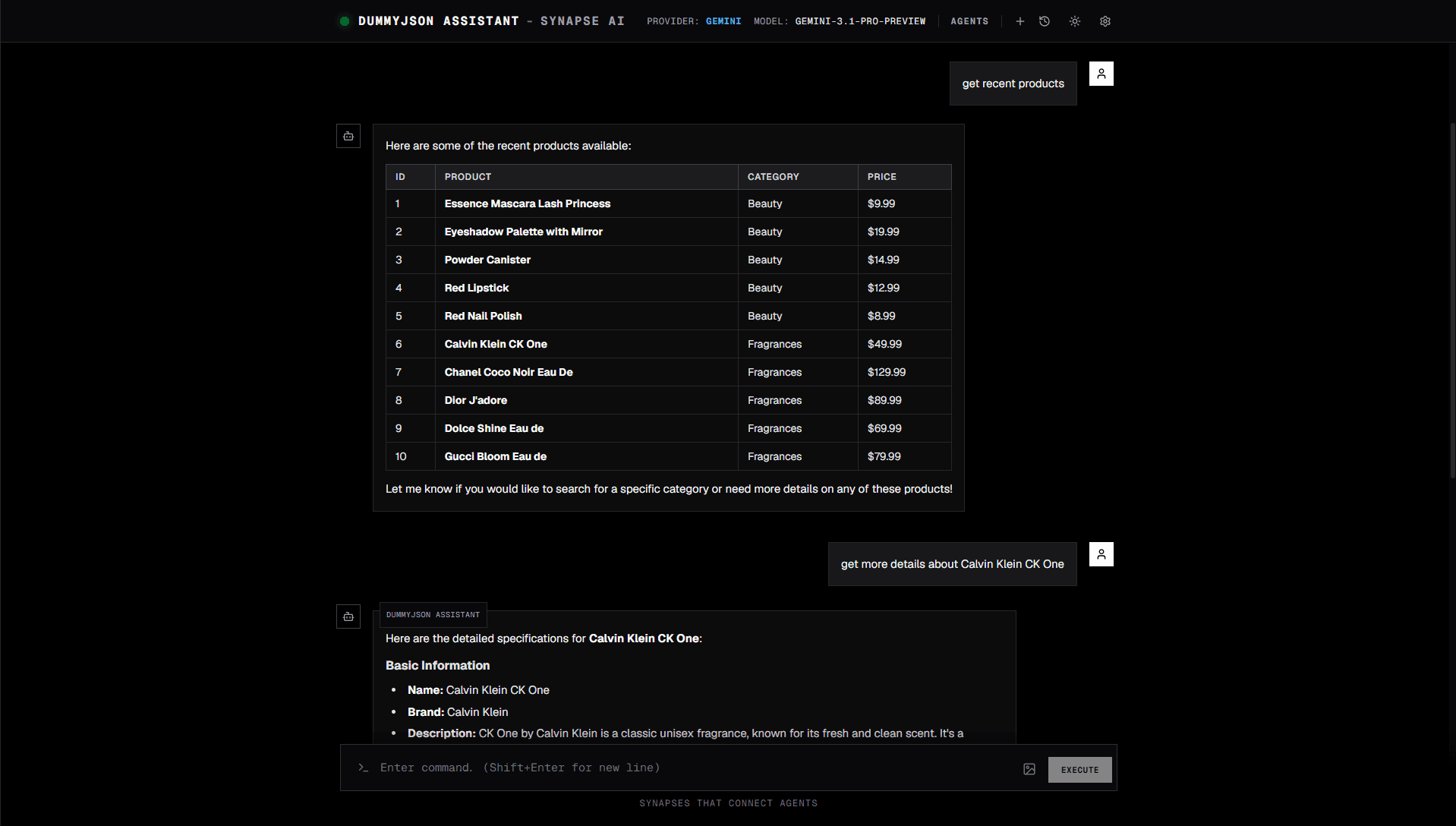
Every business runs on APIs — your product catalog, your CRM, your inventory system, your support desk. Your team spends hours querying dashboards, copy-pasting IDs, and answering the same questions from customers. What if an AI agent could handle all of that directly, in plain English, by calling your actual APIs?
This guide walks you through building exactly that: a conversational AI agent that can read data from your APIs, take actions through them, and answer questions in real time. No code. No custom backend. Just your existing APIs and Synapse AI's tool builder.
By the end you'll have a working agent and understand how to connect it to your own chat UI so customers or teammates can use it instantly.
What You'll Build
A conversational agent backed by custom API tools — one tool per API endpoint you care about. The agent reads your natural language message, decides which tool (or tools) to call, fires the API request, and responds with the result. The same agent is also accessible via the Synapse AI REST API, so you can embed it in any website, mobile app, or internal tool without building your own AI layer.
Step 1: Create Custom Tools from Your APIs
Every capability your agent needs lives in a tool — a named, parameterized HTTP call the agent can invoke on its own. You configure these in the Synapse AI UI, no code involved.
Go to Settings → Custom Tools → New Tool.
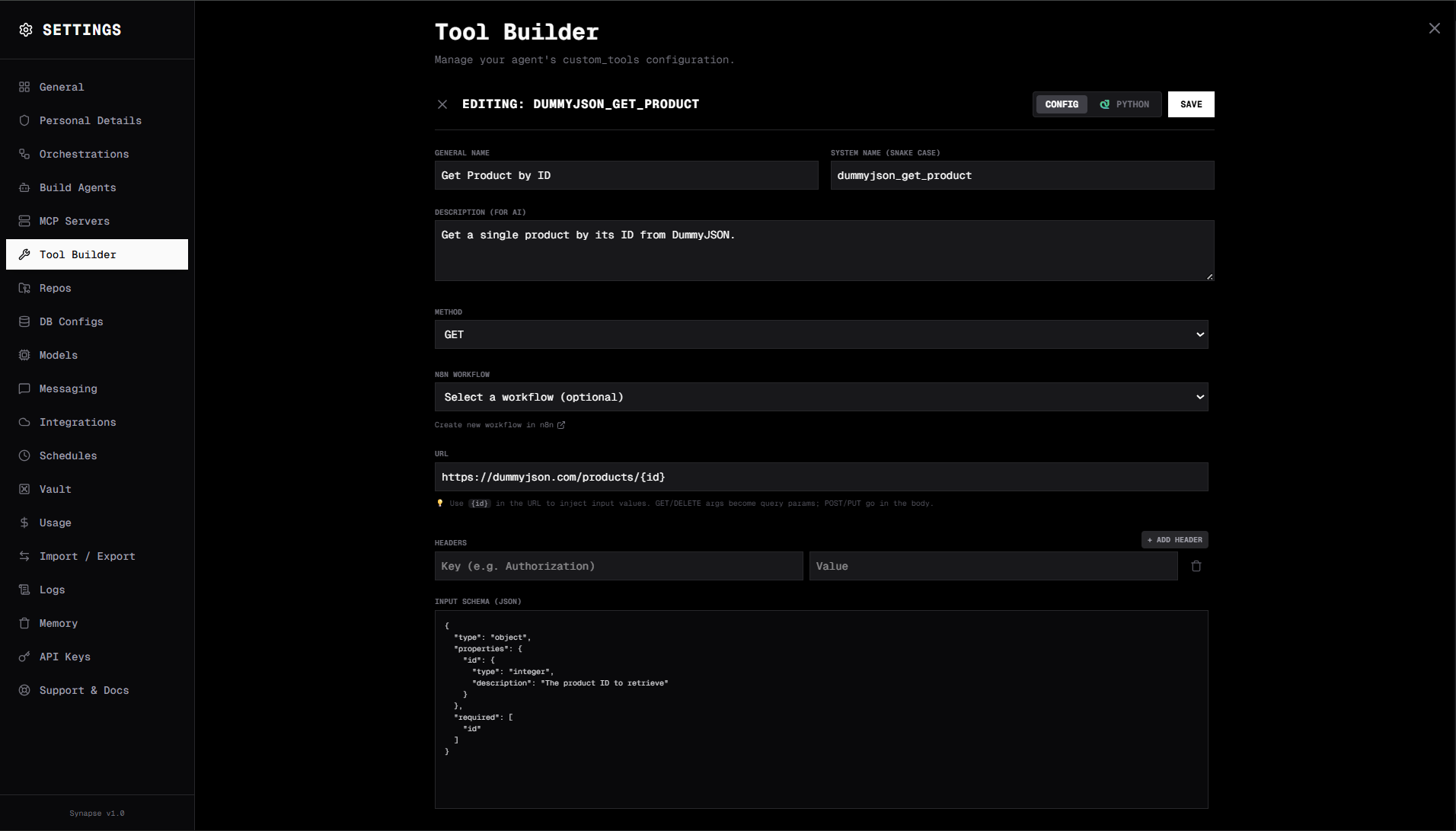
For each tool, fill in:
- Name — a human-readable label (
Get Product by ID) - System name — a snake_case identifier the agent uses internally (
get_product) - Description — one sentence explaining what this tool does and when to use it. This is what the agent reads when deciding which tool to call, so be specific.
- Method —
GET,POST,PUT, orDELETE - URL — the full endpoint URL, with path parameters in curly braces:
https://api.yourstore.com/products/{id} - Headers — add
Authorization,Content-Type, or any other headers your API requires - Input schema — a JSON Schema object describing what parameters the agent can pass. Path params, query params, and request body fields all go here.
Which HTTP method to use
| Method | When to use | Example |
|---|---|---|
GET | Read or query data | Look up a product, search orders, fetch a user profile |
POST | Create a new resource | Place an order, submit a ticket, create a booking |
PUT | Update an existing resource | Change order status, update inventory count, edit a record |
DELETE | Remove a resource | Cancel an order, delete a draft, remove a booking |
An agent can use all four in a single conversation. A customer might ask "find my order, update the delivery address, and then confirm it" — that's a GET, a PUT, and a POST in sequence, all handled automatically.
Here's an example input schema for a POST tool that creates a support ticket:
{
  "type": "object",
  "properties": {
    "subject": {
      "type": "string",
      "description": "Short summary of the issue"
    },
    "description": {
      "type": "string",
      "description": "Detailed description of the problem"
    },
    "priority": {
      "type": "string",
      "enum": ["low", "medium", "high"],
      "description": "Ticket priority level"
    },
    "user_email": {
      "type": "string",
      "description": "Email address of the user reporting the issue"
    }
  },
  "required": ["subject", "description", "user_email"]
}
The agent will extract these values from the conversation and pass them correctly formatted to your API endpoint — no prompt engineering on your end.
Create one tool per endpoint. Five endpoints means five tools. A focused agent with 10–15 well-described tools performs better than a vague agent with 50.
Step 2: Create an Agent and Assign the Tools
With your tools created, go to Settings → Agents → New Agent. Set the type to Conversational.
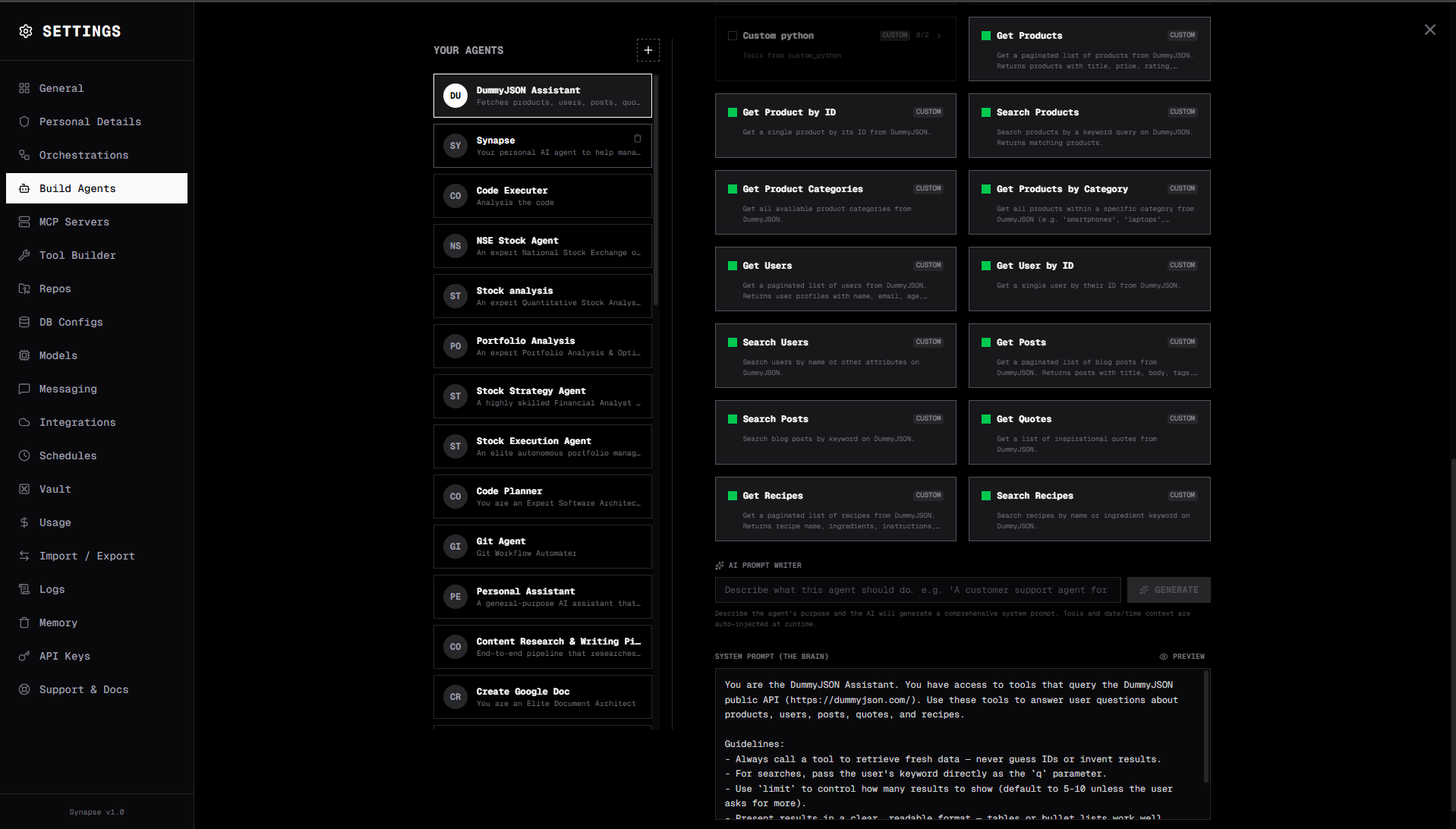
Write a system prompt that tells the agent what it is, what business context it operates in, and how it should behave:
You are a product assistant for Acme Store. You have access to the product
catalog, order system, and customer support tools.

When a customer asks about a product, always fetch live data using your tools
— never guess prices, availability, or specs.

When taking actions (placing orders, canceling bookings, updating records),
confirm with the customer before proceeding.

Be concise, helpful, and professional.
Scroll down to Capabilities (Tools). You'll see your custom tools listed alongside Synapse's built-in tools. Toggle on exactly the tools this agent needs. The agent will only see the tools you enable — keeping the tool list tight makes it faster and more accurate.
Save the agent. It's ready to use.
Step 3: Talk to Your Agent
Open the chat panel and select your agent. Start asking questions in plain language.
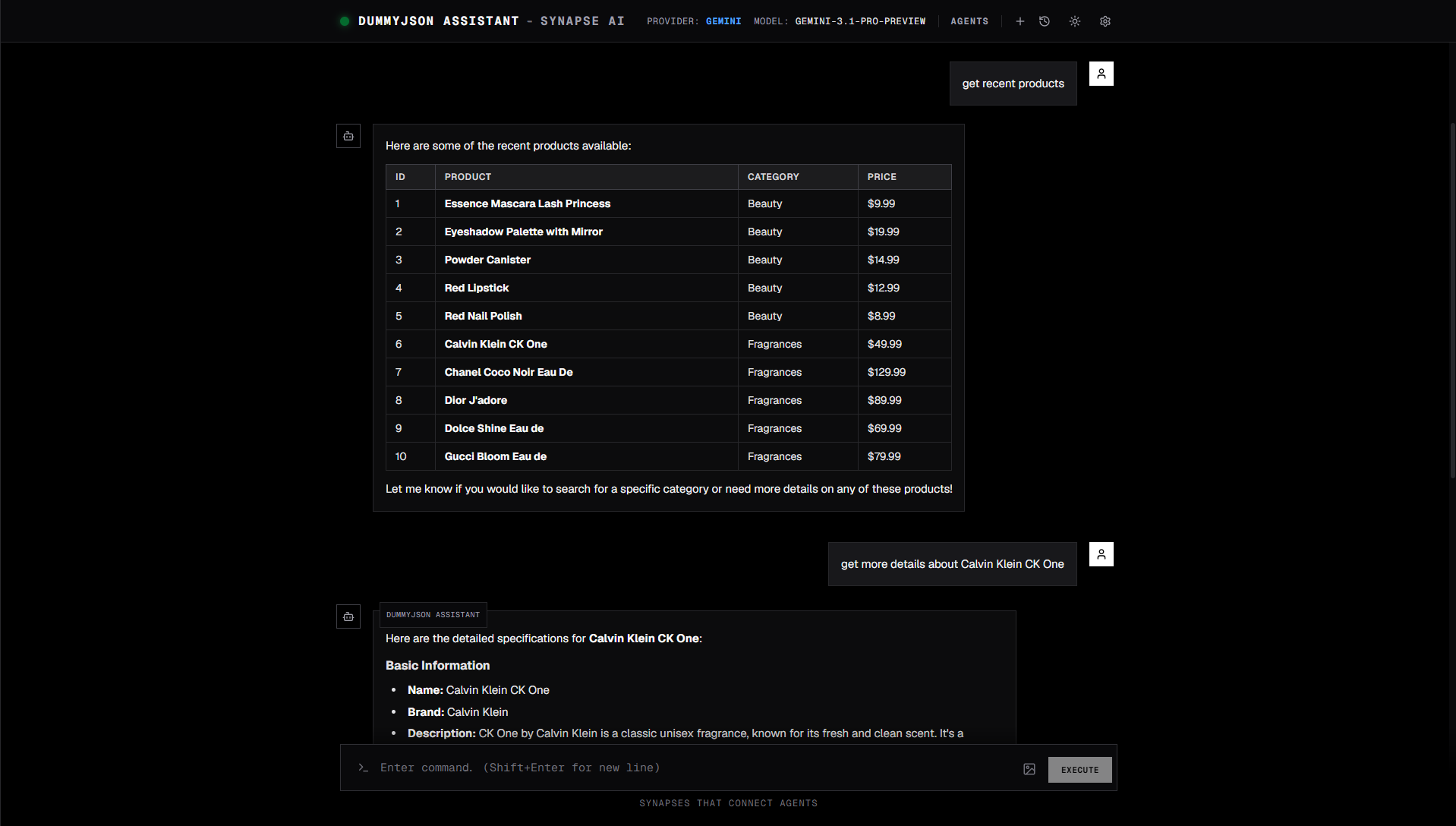
The agent reads your message, picks the right tool, fires the API call, and responds with the result. You can watch tool calls appear in the conversation trace — each one shows the exact parameters sent and the response received.
You don't need to know which endpoint to hit or what parameters to pass. That's the agent's job.
Real Example: The DummyJSON API Agent
To help you see this in action before connecting your own APIs, we've built a complete demo agent using DummyJSON — a free public API that returns realistic product, user, post, quote, and recipe data.
The agent has 13 custom tools across five categories:
| Category | Tools |
|---|---|
| Products | List products, get by ID, search, list categories, get by category |
| Users | List users, get by ID, search users |
| Posts | List posts, search posts |
| Quotes | List quotes |
| Recipes | List recipes, search recipes |
You can ask it things like:
- "Show me electronics under $500" → searches products by category
- "Find a recipe with chicken and lemon" → searches recipes by keyword
- "Who is user number 5?" → fetches a user record by ID
- "Give me a motivational quote" → pulls from the quotes endpoint
Every response is live data from the API. The agent never fabricates — if the tool returns nothing, it says so.
This is the exact same pattern you'd use for your own APIs. Swap the DummyJSON URLs for your internal endpoints, update the system prompt, and you have a production-ready agent for your business.
Import and Try It in 30 Seconds
Download the DummyJSON agent bundle from this page and import it into Synapse AI via Settings → Orchestrations → Import.
The bundle includes the agent and all 13 tools, fully configured. Once imported, open chat, select the DummyJSON Assistant, and start asking questions. When you're ready to adapt it for your own APIs, go to Settings → Custom Tools, open any tool, and update the URL, headers, and schema to point at your endpoints.
Connect to Your Own Business Chat UI
The agent you just built isn't locked inside Synapse AI's interface. Every conversational agent is accessible via the Synapse AI REST API, which means you can embed it in:
- A customer-facing chat widget on your website
- Your internal team portal or dashboard
- A mobile app
- A custom Slack or Teams bot
The API is straightforward — send a message, get a response:
POST /api/chat
{
  "agent_id": "agent_dummyjson",
  "message": "Find me all sneakers under $80",
  "session_id": "user-session-abc123"
}
Synapse handles the AI, tool orchestration, session memory, and response formatting. Your frontend just renders the result.
If you prefer managed integrations, agents can also be bound to Slack, Discord, Telegram, or Microsoft Teams directly from Settings → Agents → Messaging Channels — no custom code needed.
Business Use Cases
Here's how the GET / POST / PUT / DELETE pattern maps to real workflows across industries:
E-commerce
- "Show me all sneakers under $80" → GET products with filters
- "Add the Air Max to my cart" → POST cart item
- "Cancel order #4521" → DELETE or PUT order status
Customer Support
- "What's the status of ticket #882?" → GET ticket by ID
- "Escalate this to tier 2 and mark it urgent" → PUT ticket priority
- "Open a new ticket for this user" → POST ticket
HR & Internal Tools
- "List all open engineering roles" → GET job listings
- "Submit a leave request for next Friday" → POST leave request
- "Update my emergency contact" → PUT employee record
Inventory & Warehouse
- "How many units of SKU-9912 are in stock?" → GET inventory record
- "Reorder 500 units from supplier" → POST purchase order
- "Mark shelf B-12 as damaged" → PUT stock status
Healthcare & Scheduling
- "Find available slots with Dr. Smith this week" → GET availability
- "Book the 10 AM appointment" → POST booking
- "Cancel my Thursday appointment" → DELETE booking
Any business that runs on a REST API can have an agent like this in under an hour.
What's Next
Once your first agent is running, a few natural extensions:
- Add authentication headers — most production APIs require an
Authorization: Bearer <token>header. Add it in the tool's Headers section. - Chain agents into a workflow — if one agent gathers data and another formats a report, wire them together in Orchestrations for a fully automated pipeline
- Add an evaluator gate — insert an Evaluator step between tool call and response to validate data before it's shown to the user
- Schedule it — set a trigger on the orchestration to run checks automatically (daily inventory review, weekly report generation)
Check the docs for the full tool schema reference and API authentication guide, or join the Discord if you get stuck or want to share what you built.