Features · Your sign-off
Nothing goes outwithout your yes.
Add an approval step before anything important goes out: an email to a client, a refund, a payment, a post. The workflow pauses there, for minutes or for days, until a person says yes, no, or what to change.
Free plan, no card needed.
A weekly coffee order waiting for approval on the Home page, in a demo workspace. Played without sound.
Step by step
How an approval works, step by step.
Step 1 of 5
Add an approval step
Put a Human step in your workflow where a person should decide, and write the question. Need more than a yes? Add fields for the answer: an amount, a date, a choice, a note.- The person sees two buttons, such as Approve payment and Decline
- Fields can be text, numbers, dates, email, phone or a list
- Or just tell Synapse AI “ask me first”, and it adds the step
Step 2 of 5
The workflow pauses
The run stops at that step and is saved exactly where it is. It waits as long as it takes, even through restarts, and costs nothing while it waits.- Waiting costs no credits
- Everything waiting for you is listed under Needs you
- Cancel the run, and the question is withdrawn everywhere
Step 3 of 5
You get notified
You see the question on the Home page, in the notification bell and on the run itself, and in Telegram if you connect it. On Cloud, it can come by email too, with the question in it.- A yes-or-no question’s email has Approve and Decline links; you confirm on the page they open
- Self-hosted, you can also be asked in Slack, Discord, Teams or WhatsApp
- Admins can send just a link, to keep run details out of email
Step 4 of 5
You approve, decline or reply
Answer right where you read the question: approve, decline, or type what should change. The workflow checks the answer fits, then carries on from where it stopped.- If two people answer at once, the first answer counts
- Ask Synapse AI “what’s waiting for me?” and answer in the chat
- Your own app can answer through the API or MCP
Step 5 of 5
Clients approve for free
On Cloud, invite the people who answer under Members and give them the Approver role. An approver, your client for example, can see everything and answer what’s waiting, but can’t build or change anything. A viewer can read the question but not answer it.- Approvers and viewers are free on every plan
- They don’t use up a builder’s seat
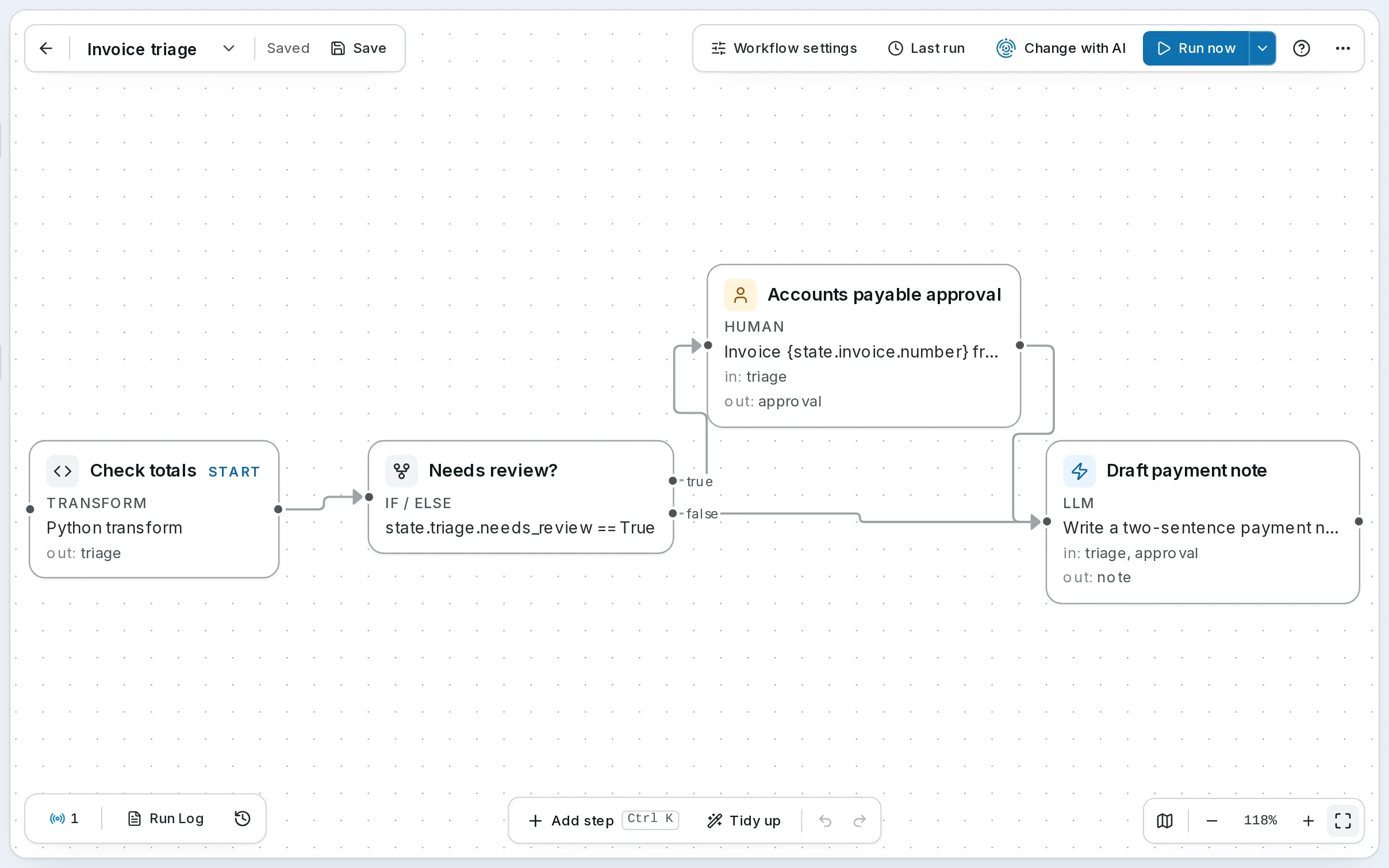
Step 1 of 5
Add an approval step
Put a Human step in your workflow where a person should decide, and write the question. Need more than a yes? Add fields for the answer: an amount, a date, a choice, a note.- The person sees two buttons, such as Approve payment and Decline
- Fields can be text, numbers, dates, email, phone or a list
- Or just tell Synapse AI “ask me first”, and it adds the step
Step 2 of 5
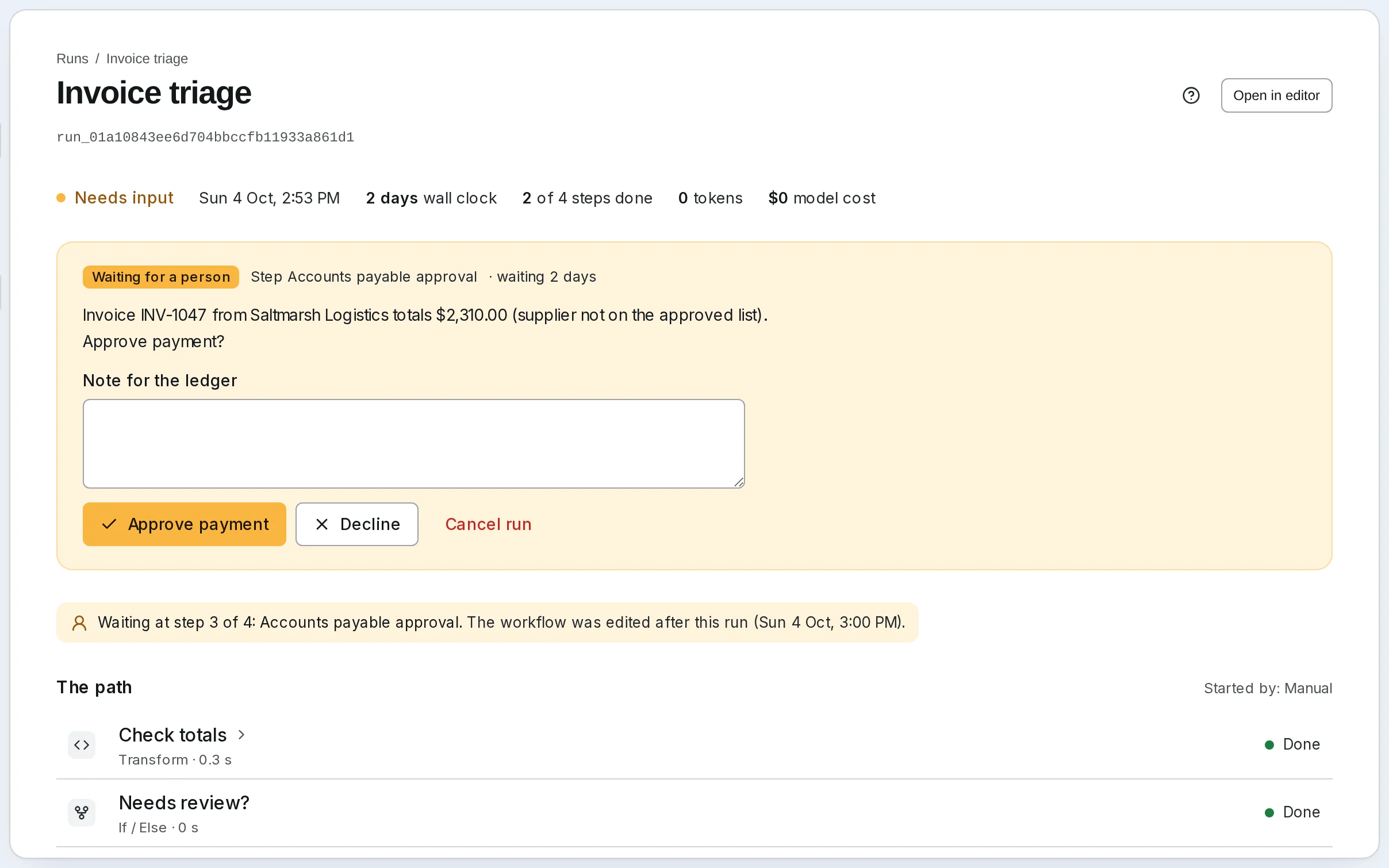
The workflow pauses
The run stops at that step and is saved exactly where it is. It waits as long as it takes, even through restarts, and costs nothing while it waits.- Waiting costs no credits
- Everything waiting for you is listed under Needs you
- Cancel the run, and the question is withdrawn everywhere
Step 3 of 5
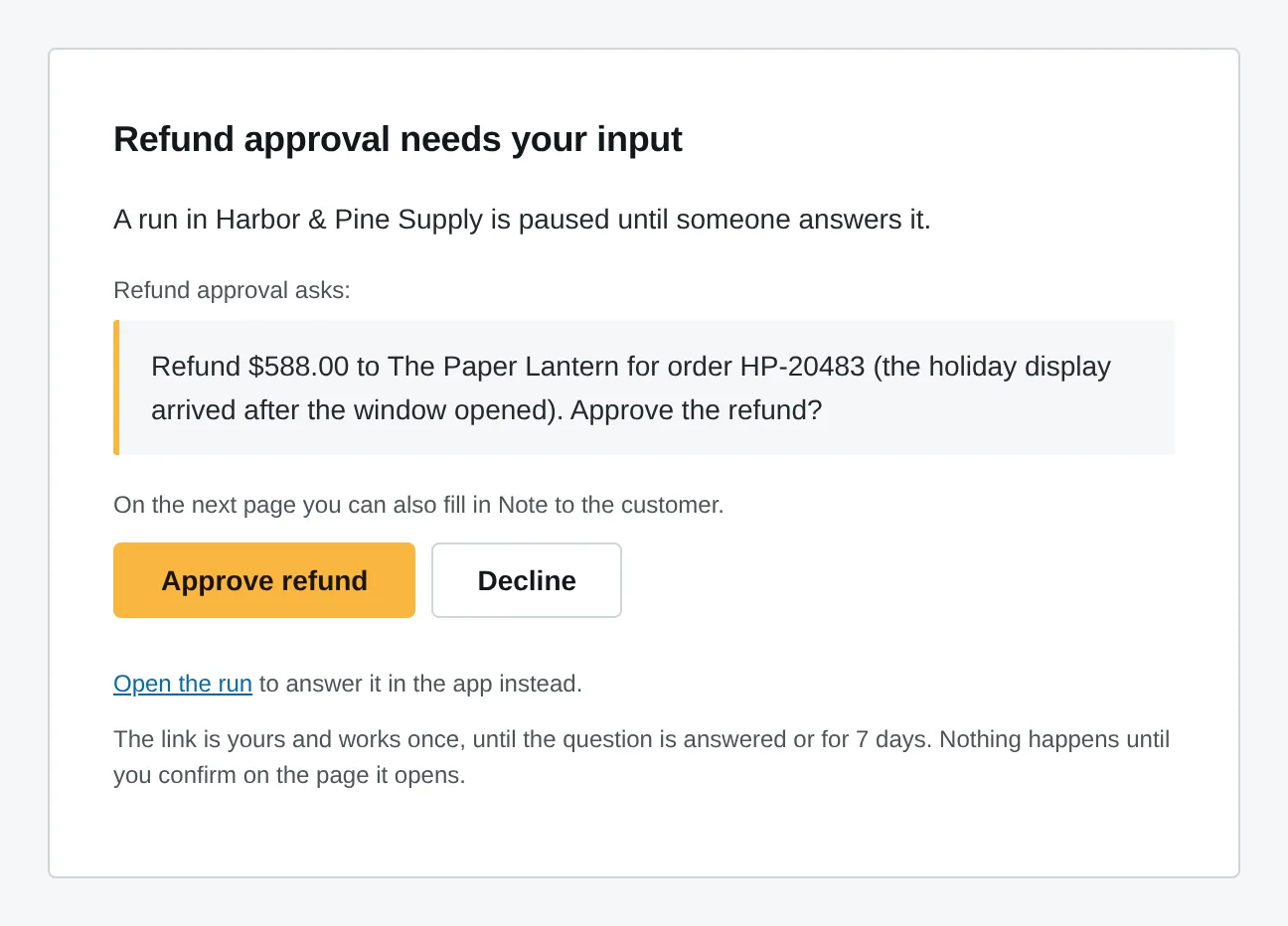
You get notified
You see the question on the Home page, in the notification bell and on the run itself, and in Telegram if you connect it. On Cloud, it can come by email too, with the question in it.- A yes-or-no question’s email has Approve and Decline links; you confirm on the page they open
- Self-hosted, you can also be asked in Slack, Discord, Teams or WhatsApp
- Admins can send just a link, to keep run details out of email
Step 4 of 5
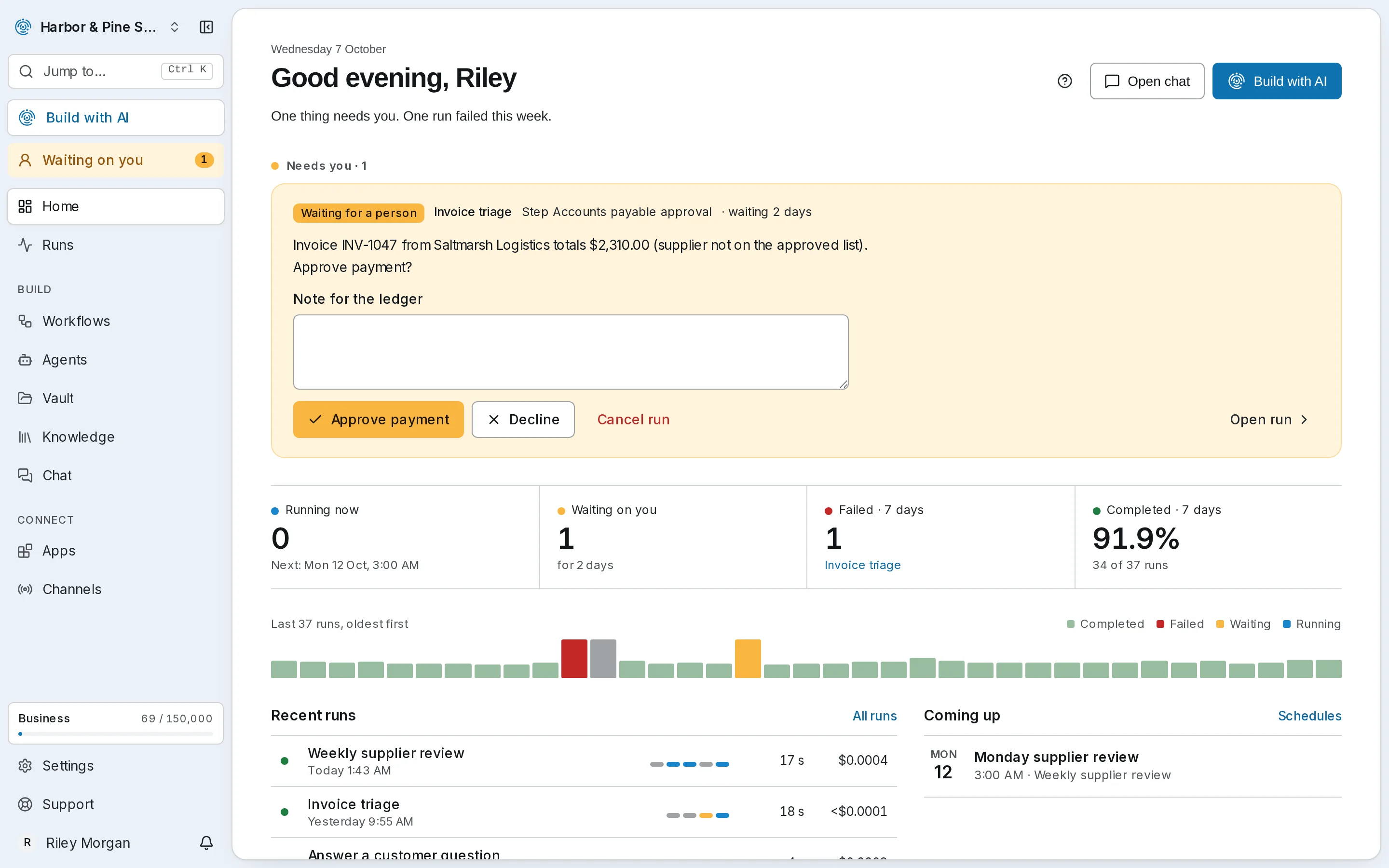
You approve, decline or reply
Answer right where you read the question: approve, decline, or type what should change. The workflow checks the answer fits, then carries on from where it stopped.- If two people answer at once, the first answer counts
- Ask Synapse AI “what’s waiting for me?” and answer in the chat
- Your own app can answer through the API or MCP
Step 5 of 5
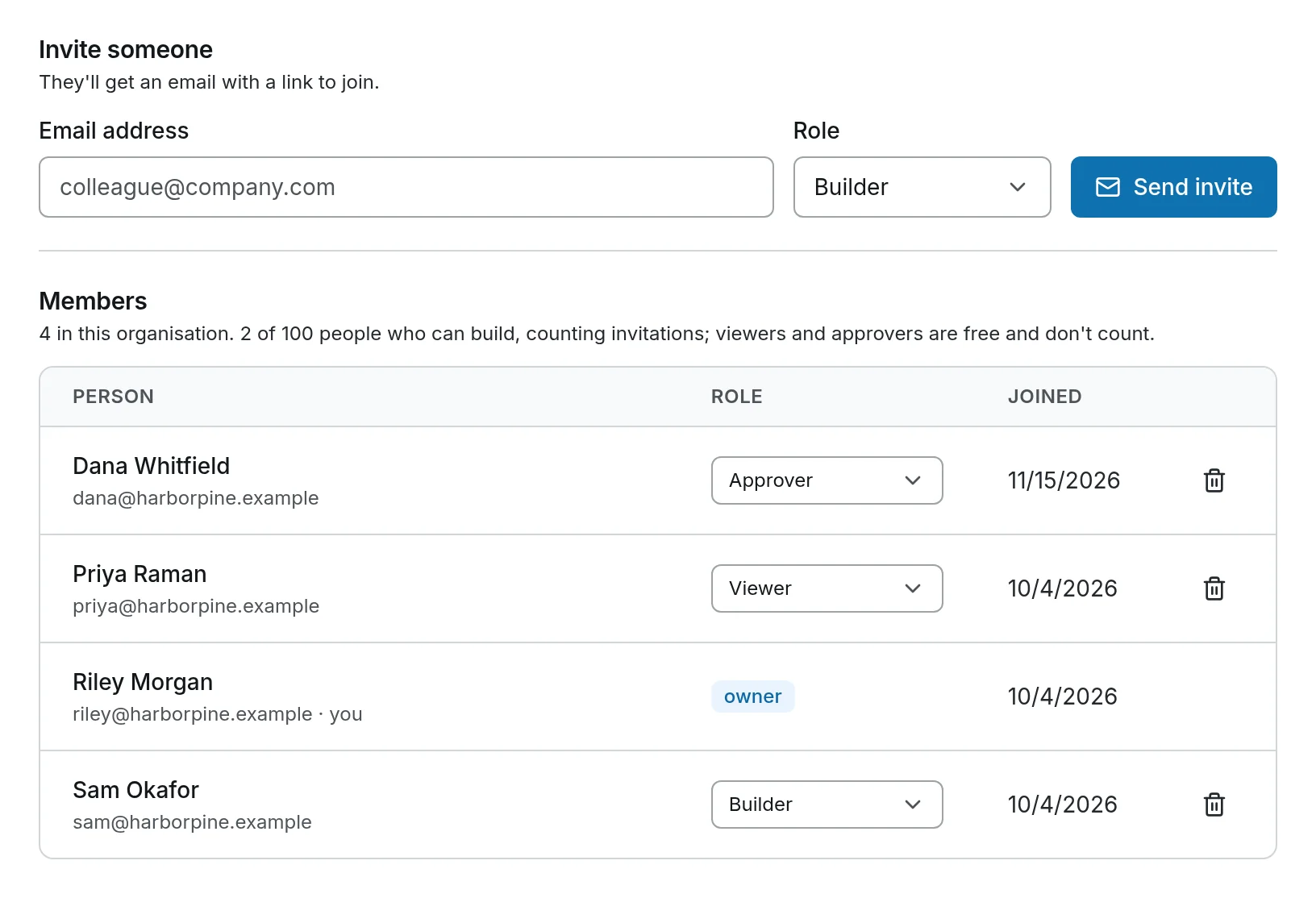
Clients approve for free
On Cloud, invite the people who answer under Members and give them the Approver role. An approver, your client for example, can see everything and answer what’s waiting, but can’t build or change anything. A viewer can read the question but not answer it.- Approvers and viewers are free on every plan
- They don’t use up a builder’s seat
What it’s for
What people approve first.
- Big refunds
- Small refunds go straight through; anything over your limit waits for a person, with the order and the amount in the question.
- Emails to clients
- The agent writes the draft and shows it in the question. It’s sent only after someone approves it.
- Supplier payments
- An invoice from a supplier who isn’t on your approved list waits for accounts payable, like the one in the pictures above.
- Work you run for a client
- Add your client as an approver on Cloud: they sign off on their own work, free, without taking a seat.
Your rules
Nothing slips past an approval step.
- Nothing runs ahead
- Every step after the approval waits for the answer. If it’s declined, the workflow can take a different path.
- Risky tool calls wait too
- Set an agent’s tools that change or delete things to Ask first, and every such call waits for a person’s OK.
- Answers are checked
- A number has to be a number, and a choice has to be one of the options. Anything else is refused, and the workflow keeps waiting.
- A blank reply isn’t an answer
- Empty text is refused in the app, the API and MCP, and the workflow keeps waiting.
Where it works
Answer from the app, from chat or from email.
- On SynapseOrch Cloud
- In the app, in Telegram, and from the Needs input email. Approvers are free on every plan.
- On your own servers
- In the app, and in Slack, Discord, Telegram, Microsoft Teams or WhatsApp. Teams can’t start a conversation, so its questions are answered in the app.
- From your own code
- Resume a waiting run through the API, or let an AI assistant answer it over MCP.
Put a person’s yes where it matters.
Let us run it, with nothing to install and no API key needed. Or run it on your own servers, free and open source.
Free plan, no card needed.