Features · Your website and phone
Your agent, on your websiteand on the phone.
Add a chat to your website with one line of code, in your colors and with your logo. Visitors talk to the same agent your team uses, but only with the tools and documents you allow.
Free plan, no card needed.
A visitor chatting on a café’s website, in a demo workspace. Played without sound.
Step by step
From an agent you already have to a chat on your website.
Step 1 of 4
Create the chat
Under Channels, Widgets, choose the agent, list the websites allowed to show it, and pick how it looks. A live preview shows exactly what visitors will see.- Its name, greeting, colors and logo
- A daily cap on messages, to keep costs predictable
Step 2 of 4
Choose what visitors can use
Visitors don’t get your agent’s tools by default. Tick the ones they may use. Any tool that would need a person’s approval is always off for visitors.- They search a knowledge base only if you allow visitors to
- Nothing a visitor says goes into the agent’s memory
Step 3 of 4
Paste one line of code
Copy the snippet into your website. The chat runs in its own frame, so your page can’t read the conversation, and your styles and the chat’s never clash.- The key in the snippet is public by design: only the websites you list can use it
- Built-in limits stop any one visitor from flooding it
Step 4 of 4
Visitors get answers
Visitors ask in plain words and the agent answers, from your documents where you allow it. If a visitor clicks to another page mid-answer, the answer follows them there.- Each visitor’s chat is private to them
- Ask Synapse AI to create or change the chat for you
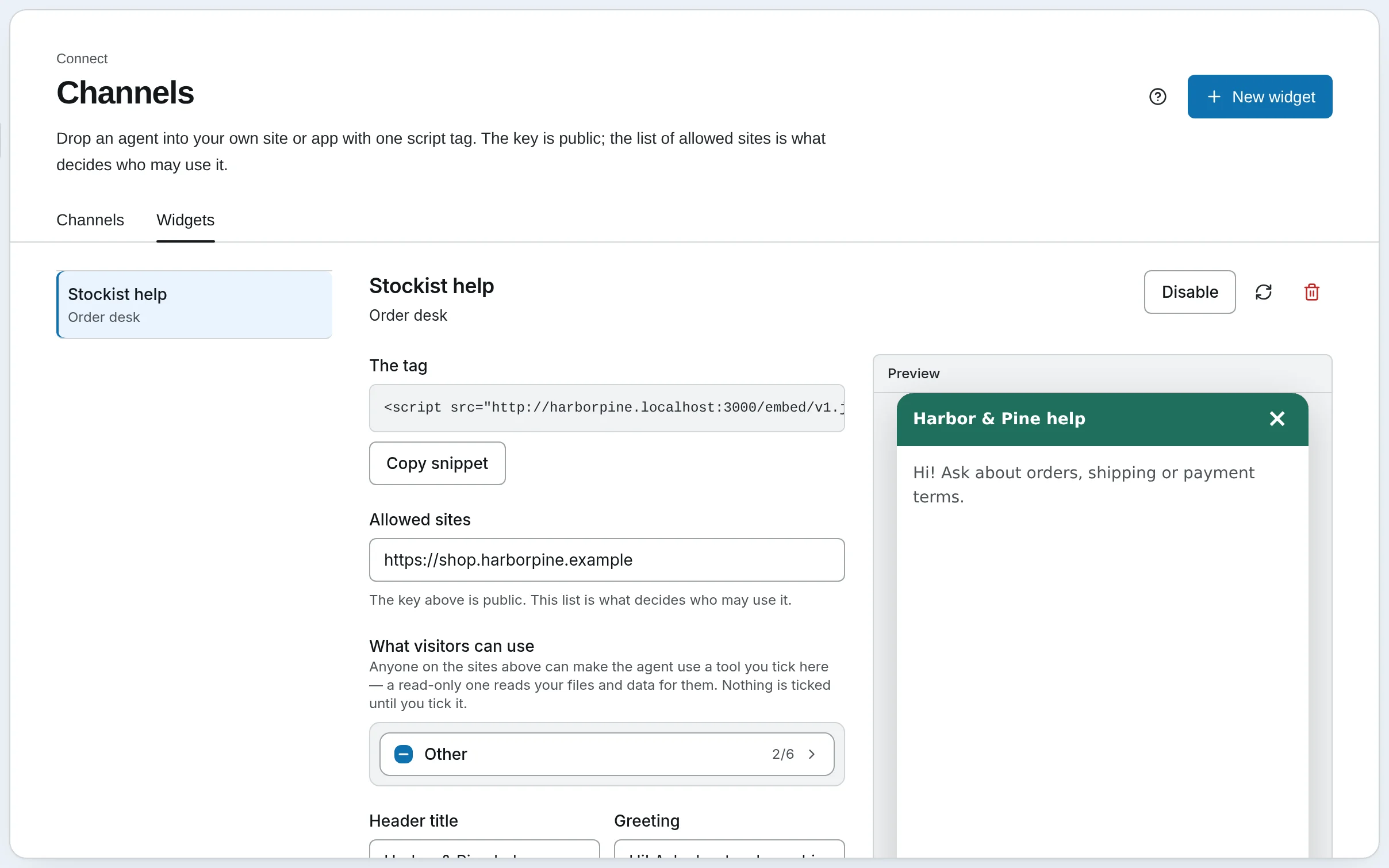
Step 1 of 4
Create the chat
Under Channels, Widgets, choose the agent, list the websites allowed to show it, and pick how it looks. A live preview shows exactly what visitors will see.- Its name, greeting, colors and logo
- A daily cap on messages, to keep costs predictable
Step 2 of 4
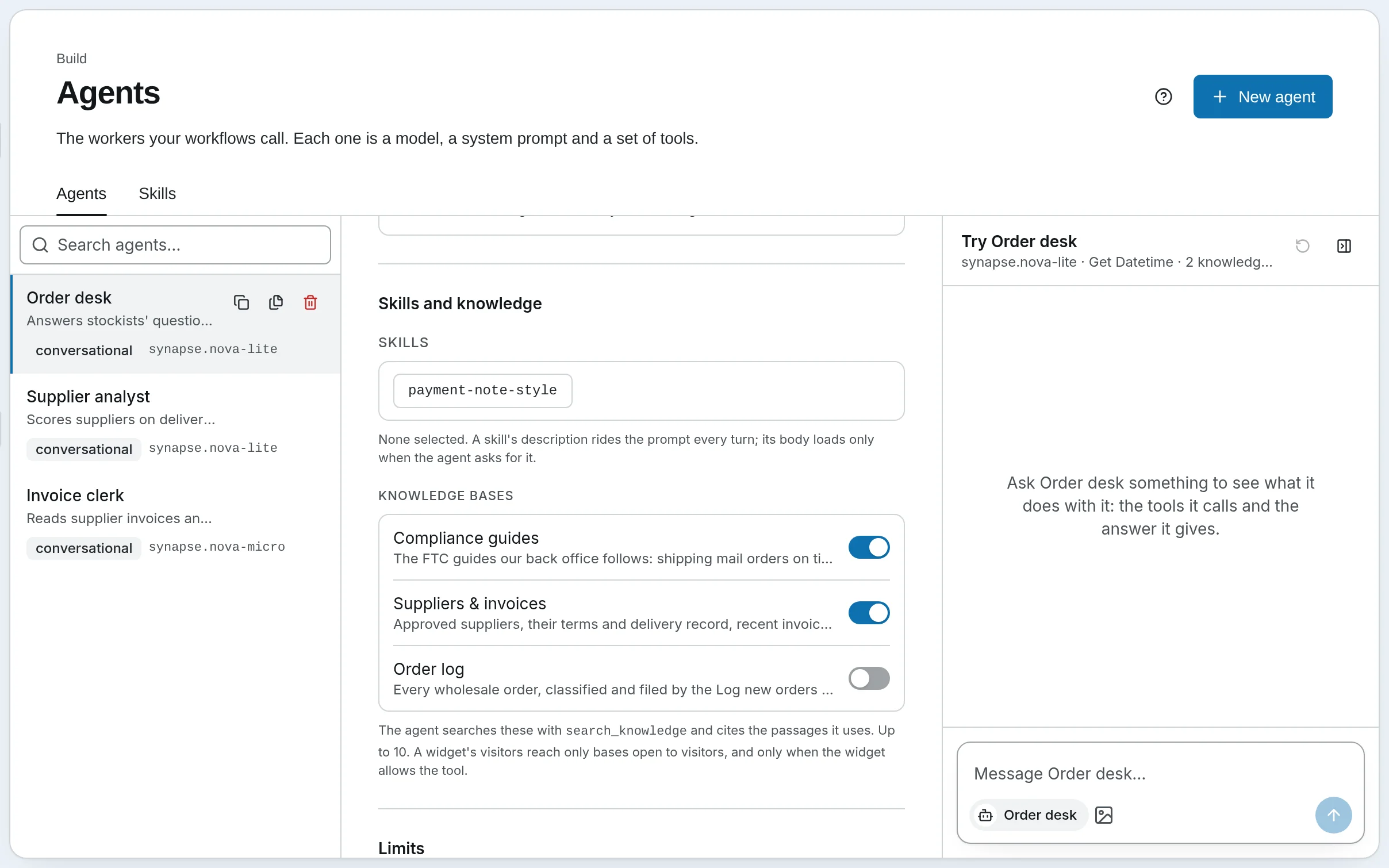
Choose what visitors can use
Visitors don’t get your agent’s tools by default. Tick the ones they may use. Any tool that would need a person’s approval is always off for visitors.- They search a knowledge base only if you allow visitors to
- Nothing a visitor says goes into the agent’s memory
Step 3 of 4
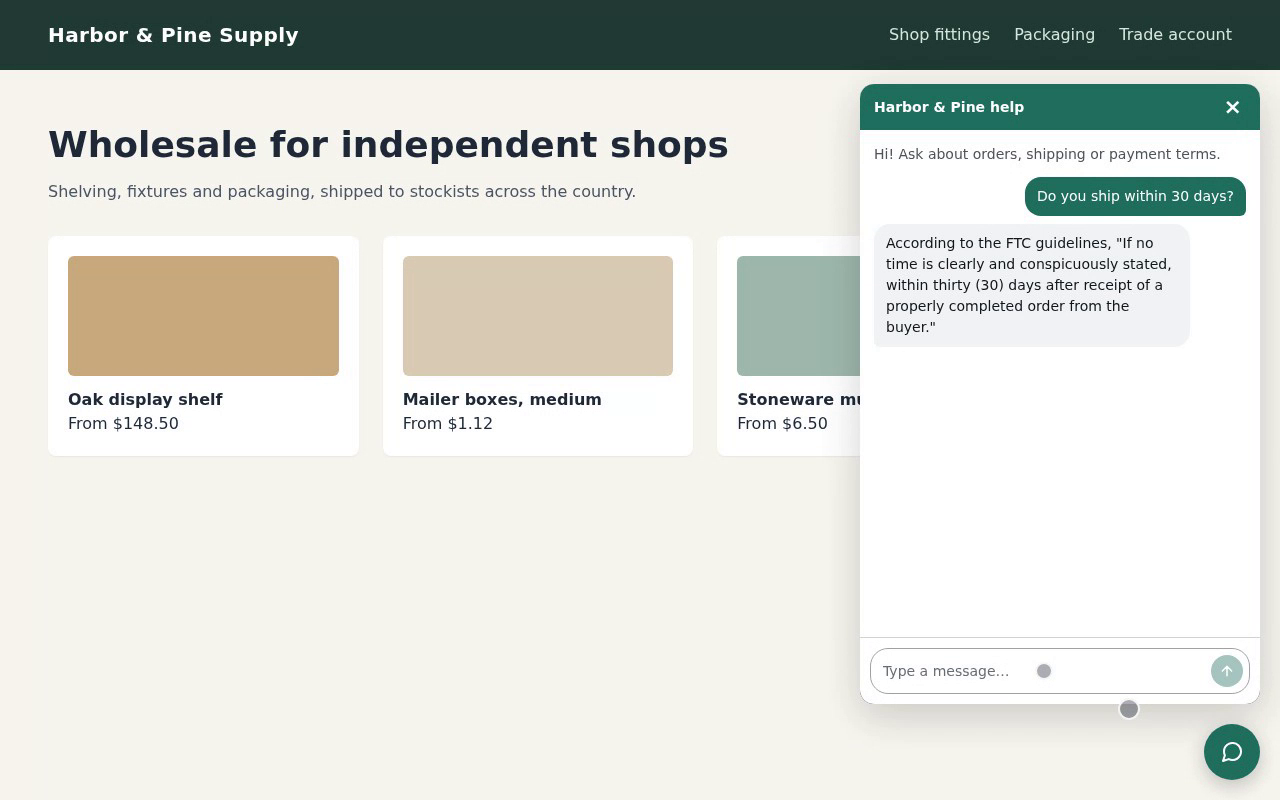
Paste one line of code
Copy the snippet into your website. The chat runs in its own frame, so your page can’t read the conversation, and your styles and the chat’s never clash.- The key in the snippet is public by design: only the websites you list can use it
- Built-in limits stop any one visitor from flooding it
Step 4 of 4
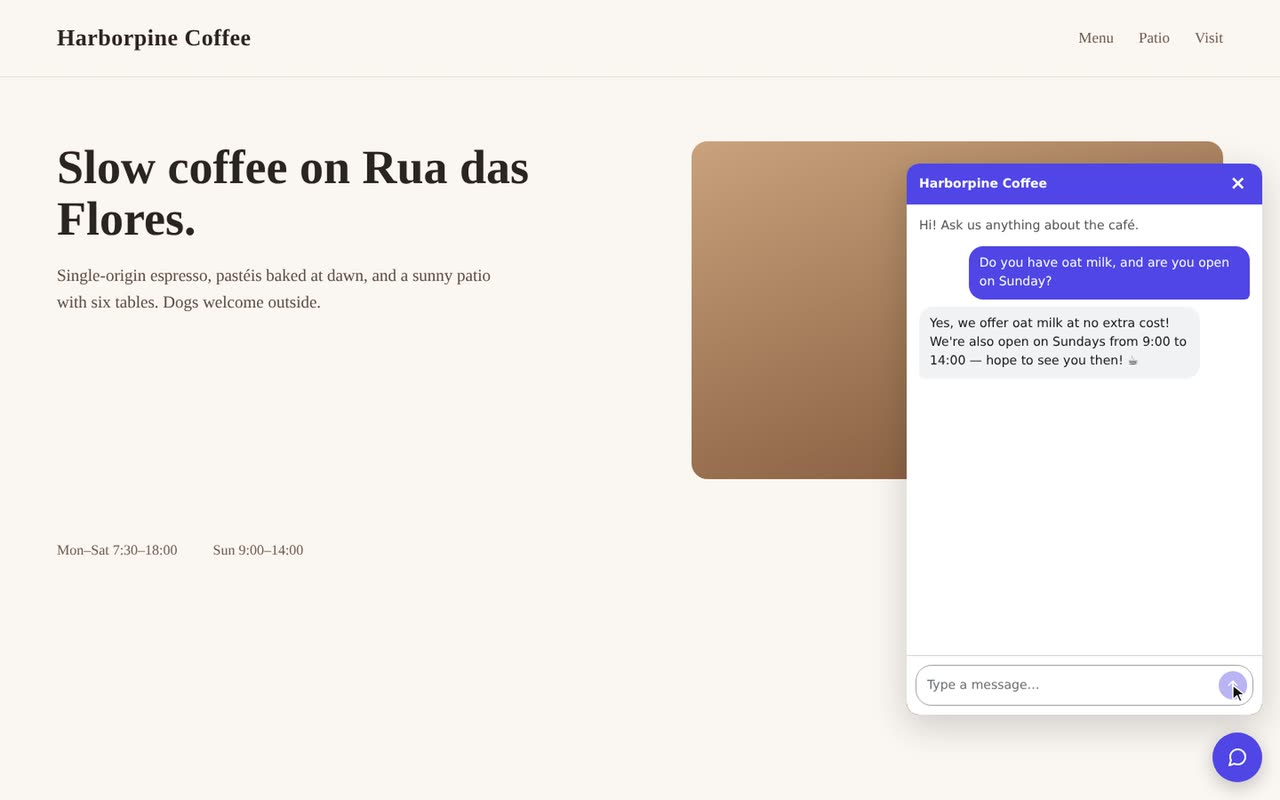
Visitors get answers
Visitors ask in plain words and the agent answers, from your documents where you allow it. If a visitor clicks to another page mid-answer, the answer follows them there.- Each visitor’s chat is private to them
- Ask Synapse AI to create or change the chat for you
What it’s for
Questions your website chat can take off your plate.
- Opening hours, menus and prices
- The questions a café or a shop answers twenty times a day, answered from your own pages.
- Orders and stock
- Allow a tool that reads your shop’s orders, and the agent looks up what a visitor asks about.
- Calls nobody can take
- Your Twilio number answers, puts the caller through to the number you choose, or takes a voicemail.
- A chat for each client
- Team includes five website chats and Growth ten, each with its own agent, look and allowed websites.
Your rules
What visitors can never reach.
- Tools you didn’t allow
- A visitor’s chat uses only the tools you ticked. A team agent answers visitors on its own, without its team.
- Anything that needs approval
- A tool that would ask a person first is always off for visitors, since nobody on your website can approve it.
- The rest of your workspace
- A visitor’s access covers that one chat. They never get an API key or anything else in your workspace.
- Your error messages
- If the AI model fails, visitors see “Something went wrong. Please try again.”, never your provider’s error.
On the phone
The same agent can answer your phone.
- Your own Twilio number
- Connect a number from your Twilio account, choose the agent that answers, and write what callers hear first.
- It can say it’s an AI
- The default greeting says “you’re speaking with …, an AI assistant for …”. If you write your own greeting, yours is used instead.
- A person when it matters
- The agent can put the caller through to a number you choose, and if nobody picks up, the caller can leave a voicemail.
- Approvals during a call
- If the agent needs someone’s OK, a person in your team is asked. If they approve while the caller is still on, the agent tells the caller.
- Callers get limited access
- Caller ID can be faked, so callers are treated like website visitors: the agent can use only the tools you allow for callers.
- Every call is logged
- Each call is listed with its transcript. Recording is off unless you turn it on, and recordings stay in your Twilio account.
Plans
Website chats on Solo and up, and on your own servers.
- On SynapseOrch Cloud
- Solo includes one website chat, Team five, Growth ten and Business twenty-five.
- Phone
- Your own Twilio number, on Cloud and self-hosted. Self-hosted needs a public https address that Twilio can reach.
- On your own servers
- The same website chat and the same visitor rules, with no plan limit.
Put your best answers on your website.
Let us run it, with nothing to install and no API key needed. Or run it on your own servers, free and open source.
Free plan, no card needed.